



Friends, let me tell you something embarrassing. I consider myself a fairly tech-savvy photographer. I have been editing photos professionally for five years. I run a successful Instagram page with over 40000 followers. But when I bought my first preset pack for 599 Rupees and tried to install it on my iPhone 15, I completely failed. For three straight hours. The DNG files kept opening in the wrong app. The ZIP file would not extract properly. Safari kept trying to preview the files instead of downloading them. I felt genuinely stupid.
Friends that frustrating evening taught me something valuable. Knowing how to install Lightroom presets on an iPhone is not obvious at all. Apple’s file system works differently from Android’s.
The steps are simple once you know them, but finding accurate instructions that actually match how iPhones behave in 2026 is surprisingly difficult. Every guide I found was either written for an older iOS version or skipped the crucial details that make the difference between success and three hours of wasted time.
So I wrote this guide. Not from theory. From my own essay, trial and error. If you follow these steps exactly, you will have your presets installed and working in under five minutes. I promise.
Before You Begin and What You Need Ready on Your iPhone
You need exactly three things prepared on your iPhone before starting. First,t the free Adobe Lightroom app was downloaded from the App Store. Second, the DNG preset files are saved somewhere accessible on your phone. Third, the Apple Files app,p which is preinstalled on every iPhone. That is it. No paid apps needed. No desktop computer required. No Creative Cloud subscription necessary for basic preset installation.
Understanding DNG Files vs XMP Files on iPhone
This distinction tripped me up badly during my first attempt. XMP preset files are designed for Lightroom Desktop on computers. They will not work on your iPhone, no matter what you try. DNG files are the mobile format that contains preset adjustments embedded inside a photo file. When you install Lightroom presets on iOS,ne you are essentially opening a photo that carries hidden editing instructions inside it. Once you extract those instructions and save them, your preset lives permanently in the app.
Why Safari Sometimes Blocks Your Download
This is something almost nobody mentions online. When you tap a DNG file download link in Safari, our iPhone sometimes tries to preview the file instead of saving it. This happens because iOS treats DNG as an image format. The fix is simple. Long-press the download link instead of tapping it. Select Download Linked File from the menu. The file will save to your Downloads folder inside the Files app. This one trick would have saved me two hours of frustration.
The Complete Step-by-Step Installation Process for 2026
I have refined this method over hundreds of installations across iPhone 13, 14, 15, and 16 models throughout 2026. It works identically on every iPhone running iOS 16 or newer.
Getting Your Preset Files Onto Your iPhone
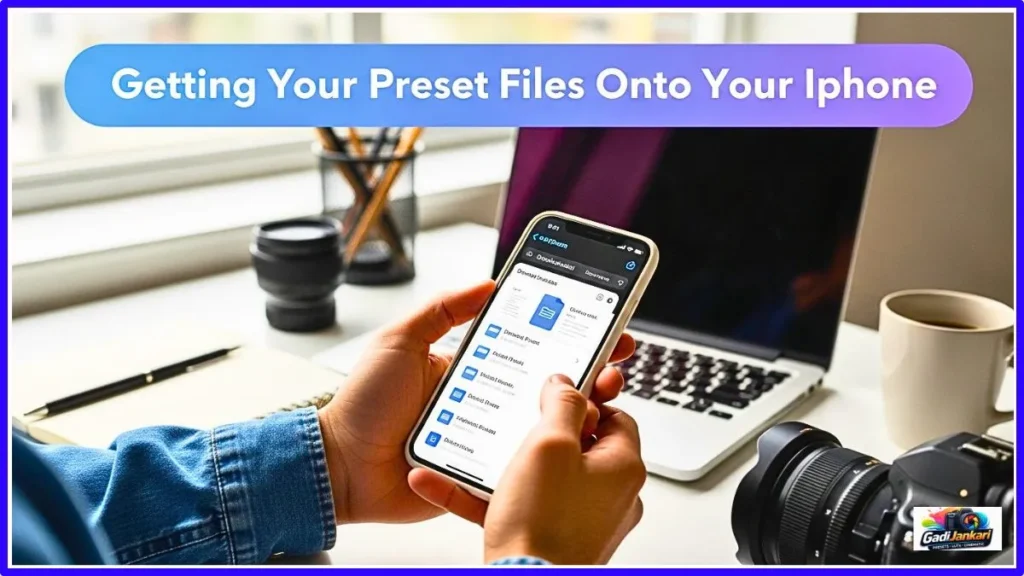
If you purchased presets online, you probably received a download link via email. Open that link in Safari on your iPhone. If it is a direct DNG file link, long-press and select Download Linked File. If it is a ZIP file containing multiple DNG presets, tap the link and let it download to your Files app. Navigate to the Files app, find the ZIP in your Downloads folder, and tap it once. iOS will automatically extract the contents into a folder with the same name. Inside that folder, you will find your individual DNG preset files ready to use.
Opening the First DNG File in Lightroom
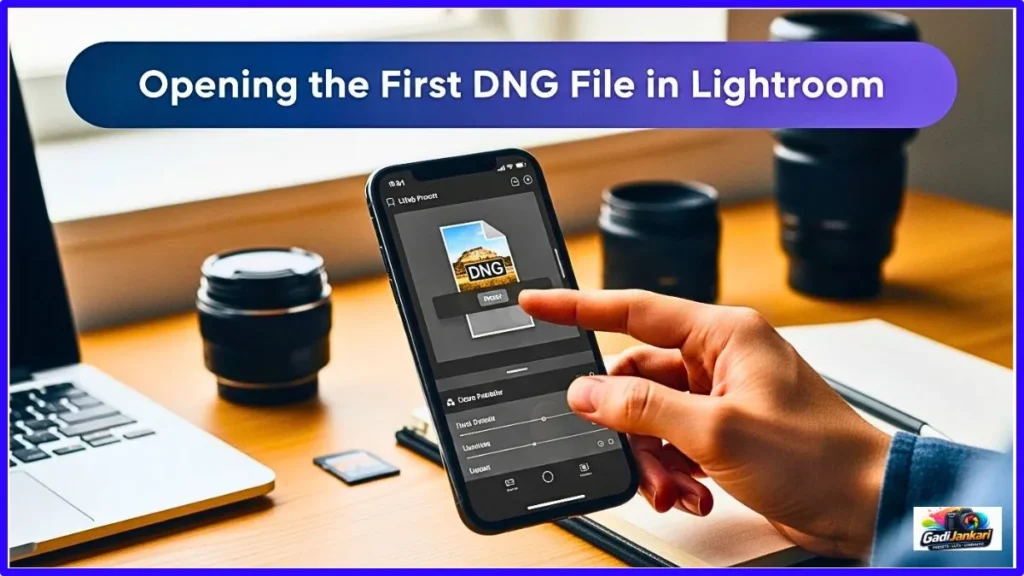
Go to the Files app and locate your extracted DNG files. Tap on the first DNG file. Your iPhone will show you a share sheet or an app selection. Choose Open in Lightroom. If Lightroom does not appear in the initial option, tap the More button and scroll until you find it. The DNG file will import into Lightroom and appear in your photo library as what looks like a regular image. This image has all the preset color adjustments already baked into it.
Extracting and Saving the Preset From the DNG
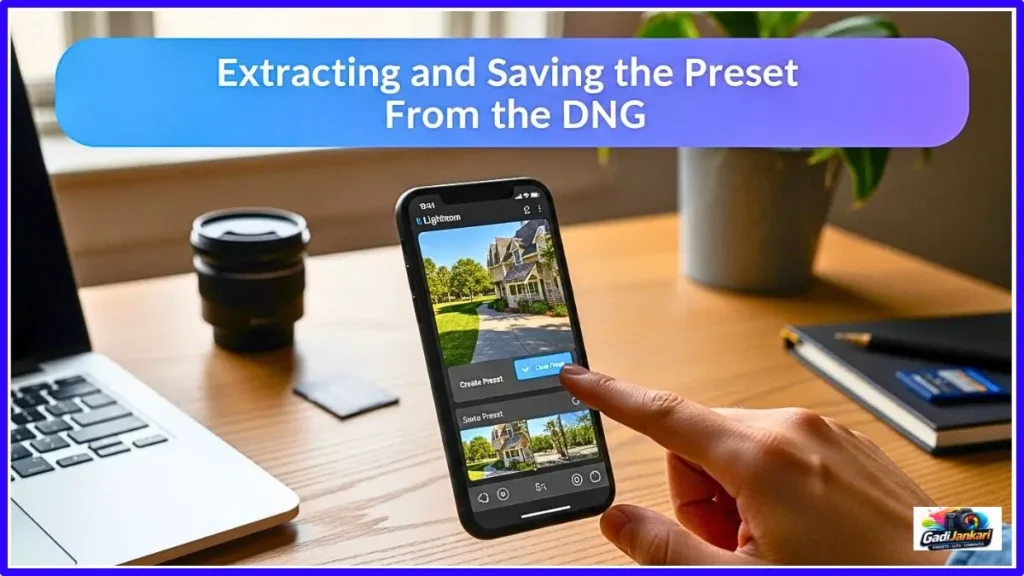
This is the step that matters most. Open the imported DNG photo in Lightroom’s editing view. You will see that it already has color adjustments applied. Tap the three-dot menu icon at the top right corner. Select Create Preset from the options. A settings panel will appear showing checkboxes for different adjustment categories. Keep all boxes checked to capture every setting the preset contains. At the top, you can name your preset and assign it to a preset group. Give it a clear, memorable name. Tap the checkmark to save. Your preset is now permanently stored in Lightroom Mobile on your iPhone.
Doing This for Every Preset in the Pack
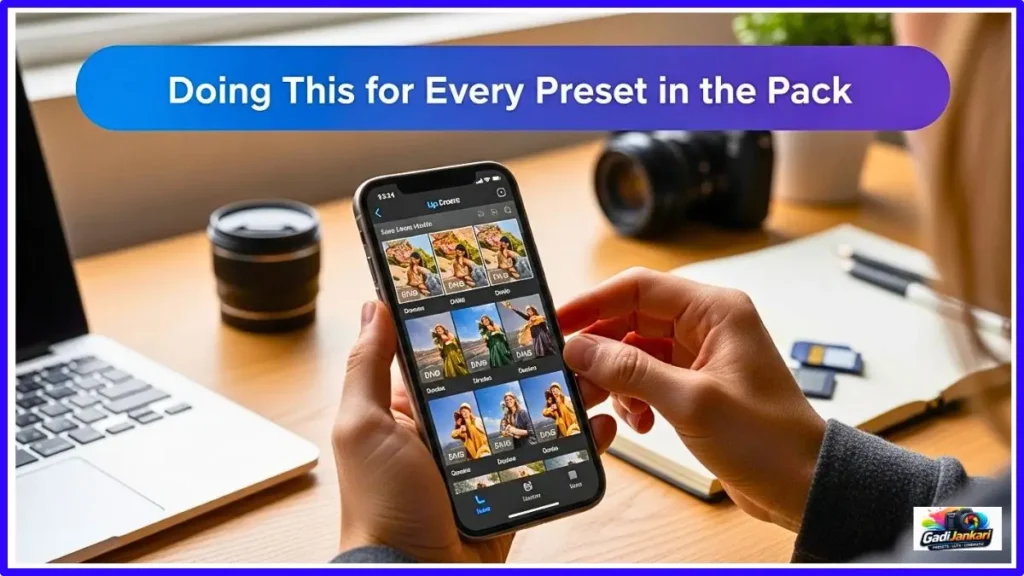
Return to the Files app and open the next DNG file. Repeat the same process. Open in Lightroom, tap three dots, Create Preset, name it, save. For a pack of 20 presets, this process takes about ten to fifteen minutes. It feels repetitive, I’ve, but you only do it once per preset pack. After saving, they stay in your app forever,r even through updates and phone transfers through iCloud.
Organizing Your Presets After Installation
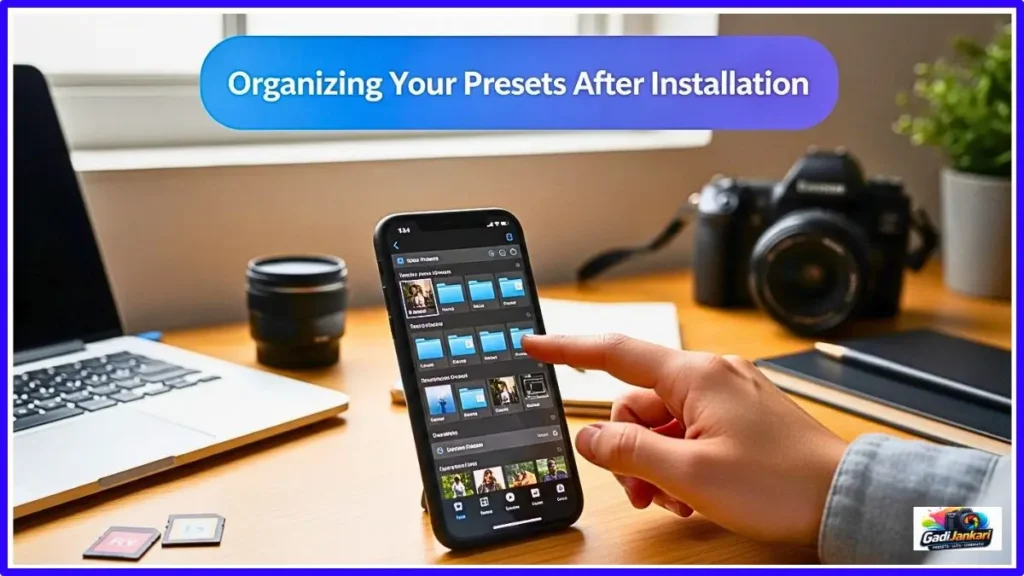
After a few months of buying preset packs, your Lightroom preset library can become overwhelming. I currently have over 250 presets on my iPhone, and without proper organization, finding the right one would be impossible. When saving each preset during the Create Preset step, you have the option to create custom groups. I use descriptive group names like Wedding Warm 2026, Portrait Clean, and Street Film. This grouping system lets me find any preset in under two seconds while editing.
How to Apply Installed Presets to Your Photos
Open any photo in Lightroom Mobile. Scroll through the editing toolbar at the bottom until you see the Presets icon. Tap, and your custom preset groups will appear alongside the default Adobe presets. Tap your group name, browse through your saved presets, and tap any one to preview it instantly on your photo. If the look wo,rks tap the checkmark to apply. All individual sliders remain fully adjustable after application, so you can fine-tune exposure, temperature, or any other setting.
Copying Preset Settings Across Multiple Photos
This workflow trick saves enormous time when editing a batch of photos from the same shoot. After applying a preset to one photo and making your adjustments, tap the three-dot menu and select Copy Settings. Open the next photo and tap Paste Settings. The same adjustments apply instantly. On a recent wedding shoot, I edited 80 photos in twenty-five minutes using this copy-paste method directly on my iPhone 15.
Troubleshooting the Five Most Common iPhone Installation Problems
This happens when iOS defaults to the built-in Photos app for image files. The fix is to use the Share button instead of directly tapping the file. Tap the DNG file, hit the Share icon at the bottom, scroll through the app list, and select Lightroom. This bypasses the default app association completely.
Problem Two and ZIP File Not Extracting Properly
Some older iPhone models running iOS 16 occasionally struggle with larger ZIP files. If tapping the ZIP does not extract it, try downloading a free app called iZip or Documents by Readdle. Both handle ZIP extraction reliably. In my experience, this problem is rare on phones running iOS 17 or 18 in 2026.
Problem Three and Presets Looking Different Than Expected
If your installed presets look different from the seller’s preview image, the most common cause is your iPhone display settings. Night Shift, True Tone, and Vivid display modes all alter how colors appear on screen. Disable these temporarily when evaluating preset colors. The actual adjustments applied to your photos are correct regardless of display settings.
Problem Four Create Preset Option Not Appearing
This occasionally happens when the DNG file imports as a regular photo without its embedded adjustments. Delete the imported photo from Lightroom. Go back to the Files app and try importing the DNG file again using the Share to Lightroom method instead of the Open In method. This almost always resolves the issue.
Problem Five and Running Out of Storage During Installation
Each DNG file is typically 8 to 20 MB. A large preset pack can temporarily use 500 MB or more during installation. After saving all presets, you can safely delete the original DNG files from both your Files app and from the Lightroom library. The saved presets themselves take very little storage space inside the app.
Free Lightroom vs Paid Subscription on iPhone in 2026
The free Adobe Lightroom app supports full preset installation and application without any subscription. You can create presets, save them, apply them to photos, and export edited images, all for free. The paid Premium subscription reportedly starts at approximately 800 Rupees per month, which adds cloud storage, selective editing tools like masking, and the healing brush. For basic preset usage and editing, the free version is more than sufficient.
iCloud Sync and Preset Backup
If you use iCloud with your Lightroom account, your presets reportedly sync across your Apple devices. This means presets installed on your iPhone will also appear on your iPad if both are signed into the same Adobe account. This cross-device sync is incredibly convenient for photographers who edit on both iPhone and iPad, depending on the situation.
Will My Presets Survive an iPhone Upgrade?
Yes. When you transfer data from your old iPhone to a new one using Apple’s migration tool, transfer your Lightroom app data, including all saved presets transfers with it. I upgraded from iPhone 14 to iPhone 15 in 2026, and every single preset carried over perfectly without needing reinstallation.
Why Mobile Preset Workflow Matters for Working Photographers in India
Friends, how to install Lightroom presets on iPhone is not just a technical skill. It is a business tool. In 2026, Indian clients expect to see edited previews within hours of a shoot. Same-day Instagram Stories from wedding events generate direct bookings. Being able to apply a professional preset to a quick phone snap and post it while still at the venue gives you a competitive advantage that desktop-only photographers simply cannot match.
The Real Numbers From My Business
My same-day preview posts generate an average of 12 to 18 direct messages per event from potential clients. At average booking rates of 40000 to 75000 Rupees per project, even one conversion per month from mobile editing visibility is worth more than every preset pack I have ever purchased combined. The return on investment for learning mobile preset workflow is genuinely massive.
Quick Installation Checklist
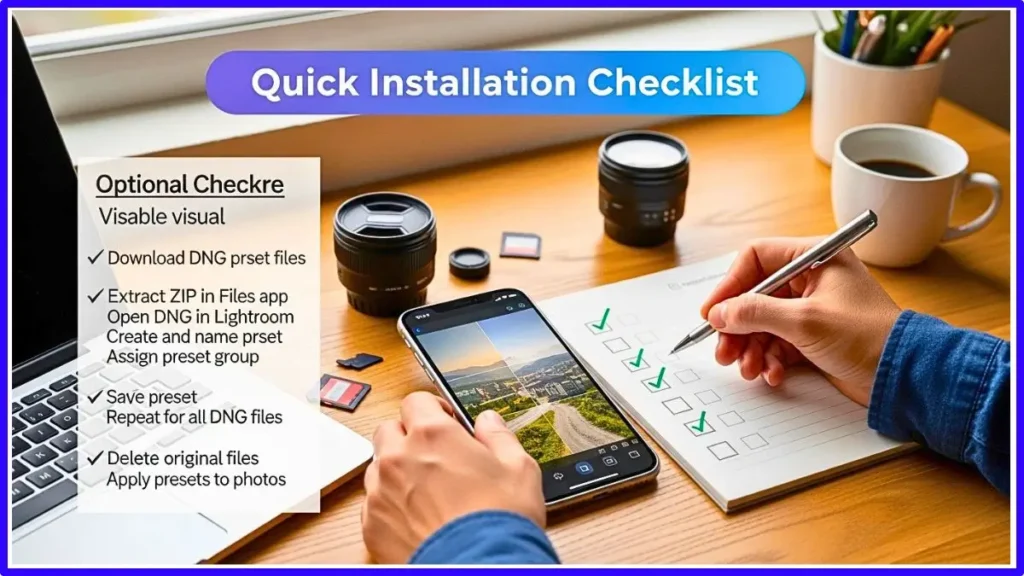
- Download DNG preset files to your iPhone using the Safari long-press method.
- Extract ZIP files by tapping them once in the Files app
- Open each DNG file and share it with Adobe Lightroom
- In Lightroom, tap the three-dot menu on the imported DNG photo
- Select Create Preset and name it with a clear descriptive label
- Assign it to a custom group for easy organization
- Tap the checkmark to save permanently
- Repeat for all remaining DNG files in the pack
- Delete original DNG files from Files and Lightroom library to save space
- Apply presets to any photo through the Presets panel in editing view
My Final Word
Learning how to install Lightroom presets on iPhone took me from frustrated to efficient in a single evening. The process is simple once you understand it, but finding clear,r honest instructions is harder than it should be. This guide exists because I do not want any photographer to waste three hours the way I did. Five minutes of focused effort and your presets are ready for life. That is the best time investment you will make in your editing workflow this year.
Frequently Asked Questions
Do I need a paid Adobe subscription to install presets on iPhone
No. The free Lightroom Mobile app supports full preset installation and usage without any subscription or payment required.
Can I install XMP preset files directly on my iPhone
No. XMP files only work on Lightroom Desktop. You need DNG format files for iPhone preset installation.
How many presets can I save on my iPhone
There is no official limit. I have over 250 saved presets, and the app runs smoothly on my iPhone 15.
Will my presets disappear if I delete the Lightroom app
Yes. Deleting the app removes saved presets. Keep your original DNG files backed up in iCloud or Google Drive.
Do installed presets work offline without internet
Yes. Once saved to Lightroom, your presets work completely offline without any internet connection needed.
Leave a Reply