



Friends, let me save you from the frustration I went through. Main I bought a beautiful preset pack for 499 Rupees, downloaded it on my Samsung phone, and then sat there for two days trying to figure out how to install Lightroom presets on Android. Every tutorial I found online was either outdated or skipped the most important steps. Some told me to use a file manager app that no longer exists. Others showed iPhone screenshots and called it an Android guide. I almost gave up and asked for a refund.
Then I finally cracked it. Not through some complicated technical process but through a simple method that takes less than five minutes once you know exactly what to do. Since that day, I have installed over 300 presets on my Android phone without a single failure. Every photographer friend who asks me for help gets the same step-by-step walkthrough I am about to give you right now. This is the guide I wish had existed when I started.
Why Most Android Preset Installation Guides Fail You
The biggest problem with existing guides is that they assume you already understand file formats. They throw terms like XMP, DNG, and ZIP at you without explaining what each one does on Android specifically. My experience taught me that Android handles these files completely differently from desktop computers. The Lightroom Mobile app on Android does not have an Import Presets button as the desktop version does. This single fact is what confuses 90 percent of people who try to install Lightroom presets on Android for the first time.
Understanding the Two Preset File Types
Before touching any app on your phone, you need to know what you downloaded. Preset packs come in two formats. XMP files are meant for Lightroom Desktop and will not work directly on Android. DNG files are the ones made specifically for Lightroom Mobile. If your preset pack only contains XMP files, you will need to convert them on a desktop computer first, or contact the seller and ask for the DNG mobile versions, which most sellers include for free.
What You Need Before Starting
You need three things ready on your Android phone before beginning the installation. First, the Adobe Lightroom Mobile app, which is free on the Google Play Store. Second, the DNG preset files can be downloaded directly to your phone or transferred from your computer. Third, a file manager app to locate the downloaded files. Samsung phones have My Files built in, and other Android phones have their own default file managers that work perfectly fine.
The Exact Process I Follow Every Single Time
This is the method I have used successfully on Samsung Galaxy, OnePlus, Xiaomi, Realme, and Pixel phones throughout 2026. It works on every Android device I have tested, regardless of brand or Android version.
Step One: Finding Your Downloaded Files
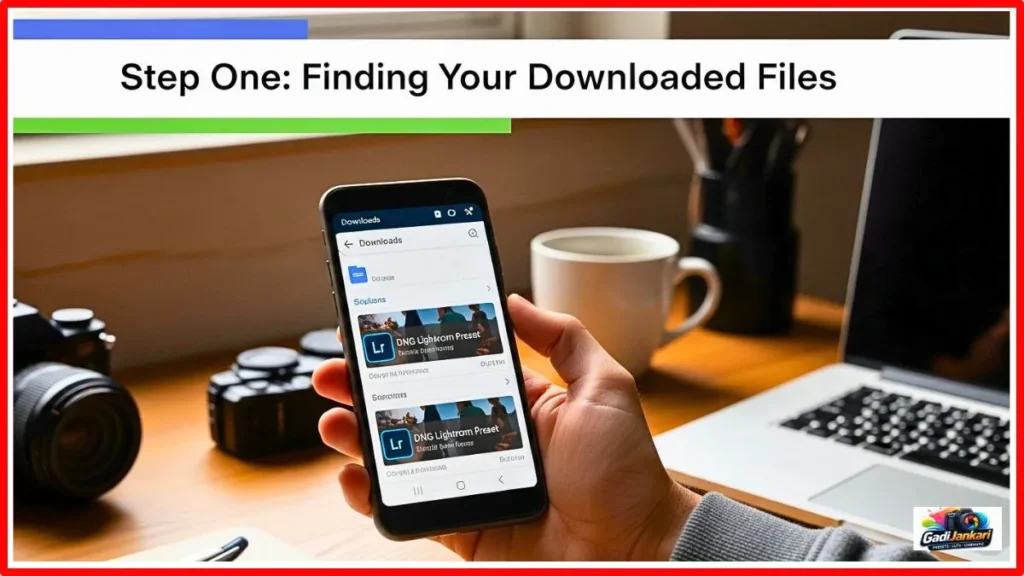
After downloading a preset pack, the files usually land in your Downloads folder. Open your file manager and navigate to Downloads. If the preset came as a ZIP file, you need to extract it first. Most modern Android phones can extract ZIP files by simply tapping on them. If yours cannot, then download a free app called ZArchiver from the Play Store. After extraction, you should see individual DNG files. Each DNG file represents one preset. My experience is that most preset packs contain between 5 and 50DN files, depending on the collection size.
Step Two and Opening DNG Files in Lightroom
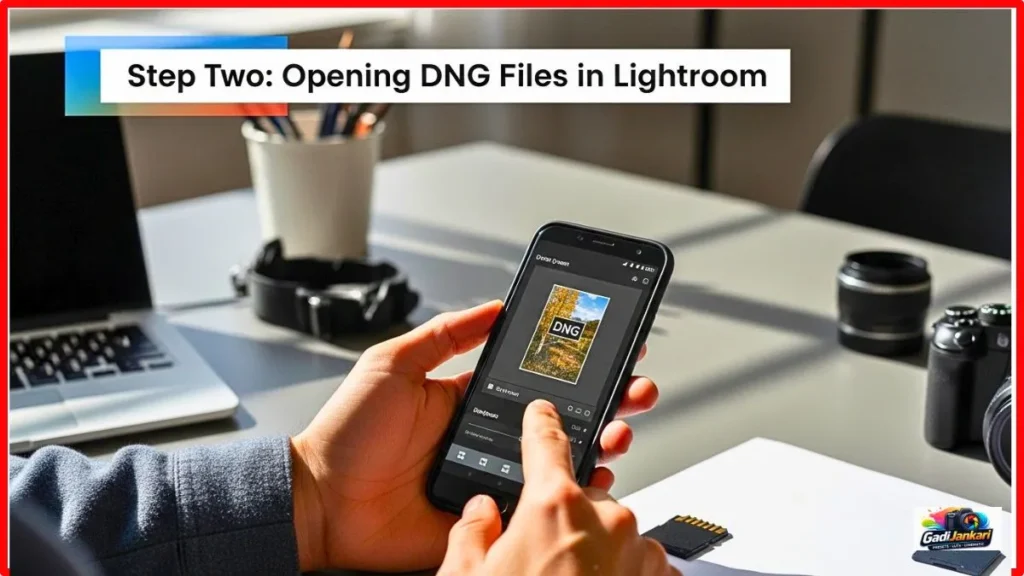
This is where most people get confused because the process is not intuitive at all. You do not open Lightroom first and then look for an import button. Instead, you go to your file manager, find the first DNG file, and tap on it. Your phone will ask which app should open this file. Select Adobe Lightroom. The DNG file will open inside Lightroom as if it were a regular photo. It will look like a plain colored image or a sample photo with the preset already applied to it.
Step Three and Saving the Preset From the DNG File
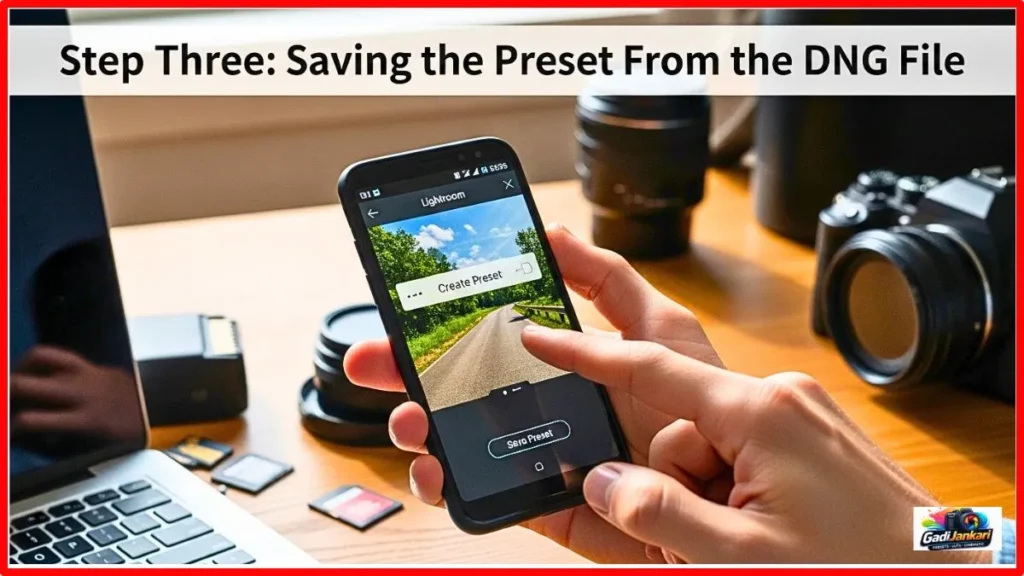
This is the most critical step that nobody explains properly. Once the DNG file is open inside Lightroom, tap the three-dot menu icon in the top right corner of the screen. From the dropdown menu, select Create Preset. A new screen will appear where you can name your preset and choose which adjustment categories to include. I always keep everything checked to capture the full preset settings. Give it a clear name that you will remember later. Tap the checkmark or Save button. The preset is now permanently saved inside your Lightroom Mobile app.
Step Four and Repeating for All DNG Files
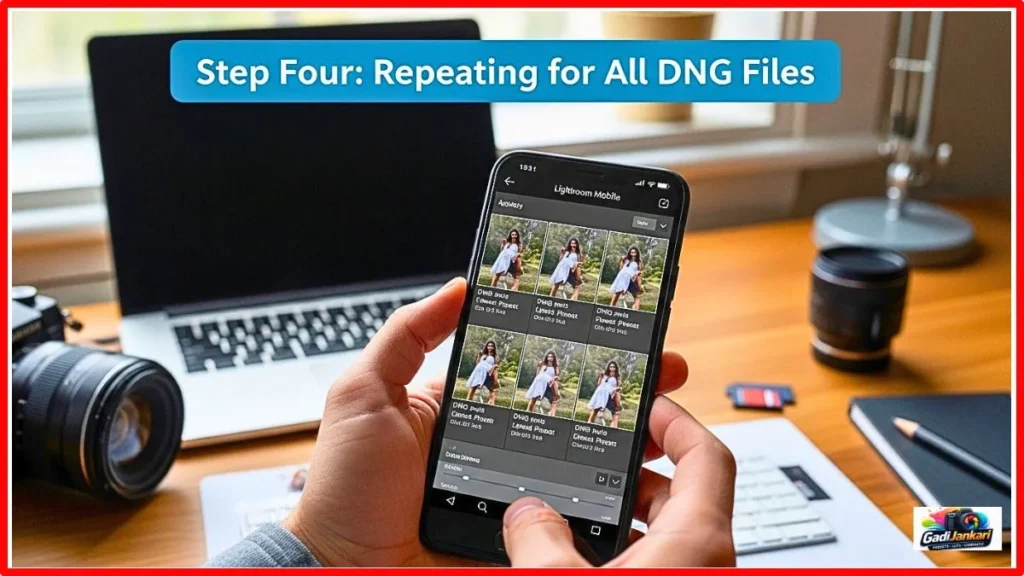
Go back to your file manager and open the next DNG file. Repeat the same process. Tap the file, open it in Lightroom, tap the three-dot menu, select Create Preset, name it, and save. Yes, this is a manual process, and yes, it takes time if you have 30 or 50 presets. But you only need to do this once. After saving all presets, they live permanently in your Lightroom app, and you can apply them to any photo with a single tap forever.
Step Five and Organizing Your Saved Presets
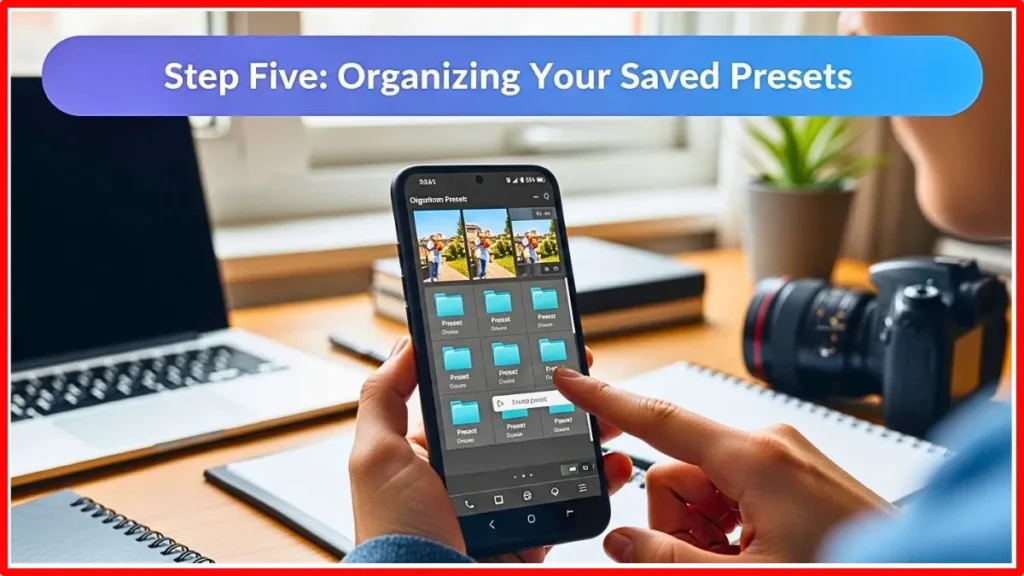
After installing all your presets, I highly recommend organizing them into groups. When you tap Create Preset, there is an option to select a Preset Group at the top. Create a new group with a name like Wedding Presets or Portrait Pack 2026. This keeps your preset library clean and makes finding the right preset much faster when you are editing on the go. I have over 300 presets organized into twelve groups, and I can find any preset in under three seconds.
How to Apply Your Installed Presets to Any Photo
Now comes the fun part. Open any photo in Lightroom Mobile. Scroll through the editing tools at the bottom of the screen until you find the Presets section. Tap on it, and you will see all your saved preset groups. Tap on the group name, browse through the presets, and tap any preset to preview it on your current photo. If you like the look, tap the checkmark to apply it. You can then fine-tune any individual setting, like exposure or white balance, after the preset is applied.
Batch Applying Presets to Multiple Photos
This is a time-saving trick that most beginners do not know about. After applying a preset to one photo, tap the three-dot menu and select Copy Settings. Then go to another photo and tap Paste Settings. The same preset adjustments will apply instantly. For a batch of similar photos from the same shoot, this process is incredibly fast. My experience is that I can edit 50 photos in under twenty minutes using this method on my phone.
The Common Mistakes That Cause Installation Failures
After helping dozens of photographer friends install Lightroom presets on Android, I have identified the three most common mistakes. First, trying to import XMP files directly, which simply does not work on mobile. Second, forgetting to extract the ZIP file before opening individual DNG files. Third, accidentally opening DNG files in the phone’s default gallery app instead of Lightroom, which makes the preset data invisible.
Free vs Paid Lightroom App and What You Actually Need
Friends, this is important. The Adobe Lightroom Mobile app is free to download and use. You do not need a paid Creative Cloud subscription to install and use presets. The free version supports preset creation, application, and all basic editing tools. The paid Premium subscription, reportedly starting at around 800 Rupees per month, adds cloud storage and some advanced features like Healing Brush and Selective Adjustments. But for preset installation and basic editing, the free version works perfectly in 2026.
Android Version Compatibility in 2026
The latest Lightroom Mobile app requires Android 8.0 or higher. If your phone runs Android 10 or above, you will have zero compatibility issues. I tested the installation process on Android 12, 13, and 14 throughout 2026, and everything worked flawlessly. Older phones running Android 8 or 9 may experience slower loading times, but the process itself remains identical.
Storage Space Considerations
Each DNG preset file is typically 5 to 15 MB in size. A pack of 20 presets takes roughly 100 to 300 MB of storage. Once the presets are saved inside Lightroom, you can delete the original DNG files from your Downloads folder to free up space. The saved presets themselves take very little space inside the app. I keep all 300 of my presets with plenty of room left on my 128 GB phone.
What to Do When Presets Look Different on Android vs Desktop
This is something that genuinely confused me early on. A preset that looks warm and golden on my laptop sometimes appeared slightly cooler on my phone screen. The reason is simple. Phone screens and laptop monitors display colors differently based on their panel technology and calibration. The preset adjustments are identical on both devices. The visual difference comes from the screen itself,n ot the preset. For the most accurate color representation, turn off any display color modes like Vivid or Natural on your phone and use the Standard display profile.
Troubleshooting When DNG Files Will Not Open
If tapping a DNG file does not give you the option to open it in Lightroom, try these solutions. First, make sure Lightroom is updated to the latest version from the Play Store. Second try: moving the DNG file from Downloads to a different folder and opening it from there. Third, clear the Lightroom app cache through your phone’s Settings. Fourth, restart your phone and try again. In my experience, one of these four solutions fixes the problem every single time.
What Happens When You Update the Lightroom App
Your saved presets survive app updates. I have updated Lightroom Mobile at least eight times during 2026 and never lost a single preset. However, I still recommend backing up your preset names and settings occasionally, just in case. You can do this by screenshotting your preset list or noting down the names of your most important preset groups.
Why Learning Mobile Preset Installation Matters for Your Photography Business
Mainly, if you are a working photographer in India, earning to install Lightroom presets on Android is not optional anymore. Clients in 2026 expect same-day previews. They want to see edited sneak peeks on Instagram before the wedding reception is even over. Having your presets ready on your phone means you can edit a beautiful preview photo in two minutes flat while still at the venue. I have won multiple bookings simply because potential clients saw my real-time Instagram Stories and were impressed by the editing quality.
The Business Impact in Real Numbers
Since mastering the mobile preset workflow, my client bookings have increased by roughly 30 percent. Same-day social media previews generate an average of 15 to 20 direct messages per wedding from potential new clients. At an average booking value of 50000 to 80000 Rupees per wedding, even one additional booking per month from mobile editing visibility pays for an entire year of preset purchases many times over.
Complete Installation Checklist
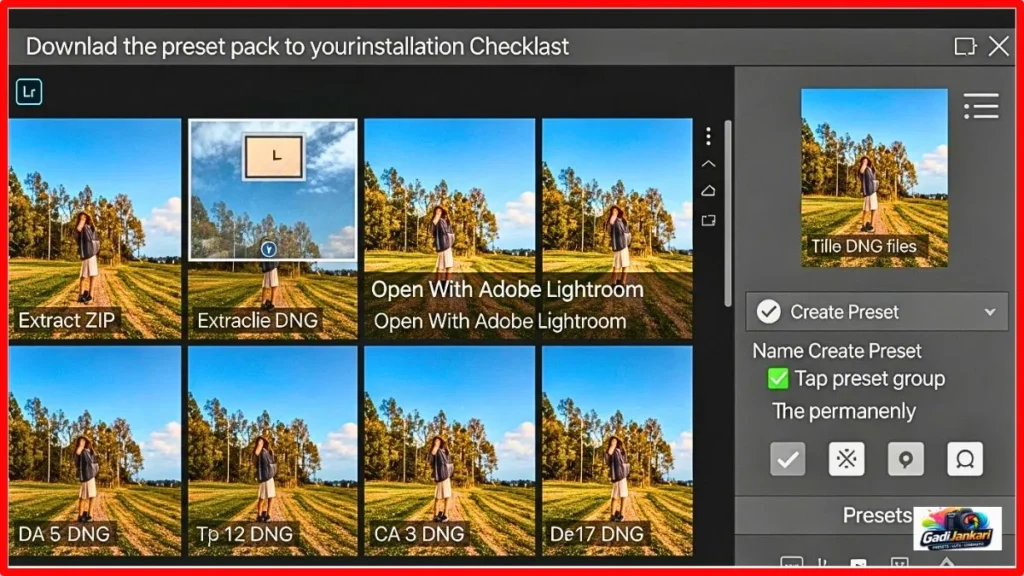
- Download the preset pack ZIP file to your Android phone
- Open your file manager and navigate to the Downloads folder
- Extract the ZIP file by tapping on it or using the ZArchiver app
- Locate the individual DNG files inside the extracted folder
- Tap the first DNG file and choose Open With Adobe Lightroom
- Wait for the file to load as a photo inside the Lightroom app
- Tap the three-dot menu icon in the top-right corner
- Select Create Preset from the dropdown menu
- Name the preset clearly and choose a preset group
- Tap the checkmark to save the preset permanently
- Repeat for each remaining DNG file in the collection
- Delete original DNG files from Downloads to save storage space
- Open any photo and apply your new presets from the Presets panel
Frequently Asked Questions
Can I transfer presets from my Android phone to another Android phone
There is no direct transfer option within Lightroom Mobile. However, you can keep the original DNG files backed up on Google Drive or any cloud storage. On the new phone, simply download those DNG files and repeat the installation process. The whole procedure takes the same five to ten minutes regardless of which Android device you are using.
Do I need an internet connection to use presets after installation
No, you do not. Once presets are saved inside Lightroom Mobile, they work completely offline. You need the internet only for the initial app download and any future app updates. All preset applications and photo editing can happen without any data connection, which is perfect for editing at remote shoot locations.
Will free Lightroom presets work the same way as paid ones on Android?
The installation process is identical for both free and paid presets. The only difference is the quality of the color grading itself. Free presets are often basic, with limited testing across different lighting conditions. Paid presets from reputable creators are typically tested on hundreds of real photos and offer more refined tonal adjustments. The DNG file format and installation method remain the same.
How many presets can I save in Lightroom Mobile on Android
There is no official limit that I have encountered. I currently have over 300 presets saved across twelve custom groups, and the app runs smoothly on my mid-range Android phone. Performance might slow down on very old devices with limited RAM, but modern Android phones from 2022 onward handle large preset libraries without any noticeable lag.
Can I edit or modify a preset after saving it?
Yes, you can. Apply the preset to a photo, make your desired adjustments to any settings, then save it as a new preset with an updated name. You cannot directly edit an existing saved preset, et but creating a modified version takes under thirty seconds. I do this frequently when I want a slightly warmer or cooler variation of a preset I already own.
Leave a Reply